 StudentAid
Every visitor written in. Every parent recognised.
The gate register, on the guard's phone. The guard types a mobile number: a parent comes up with their photo and their children, anyone else writes their own details. The office sees who is inside now, and parent-teacher meetings tick themselves off at the gate.
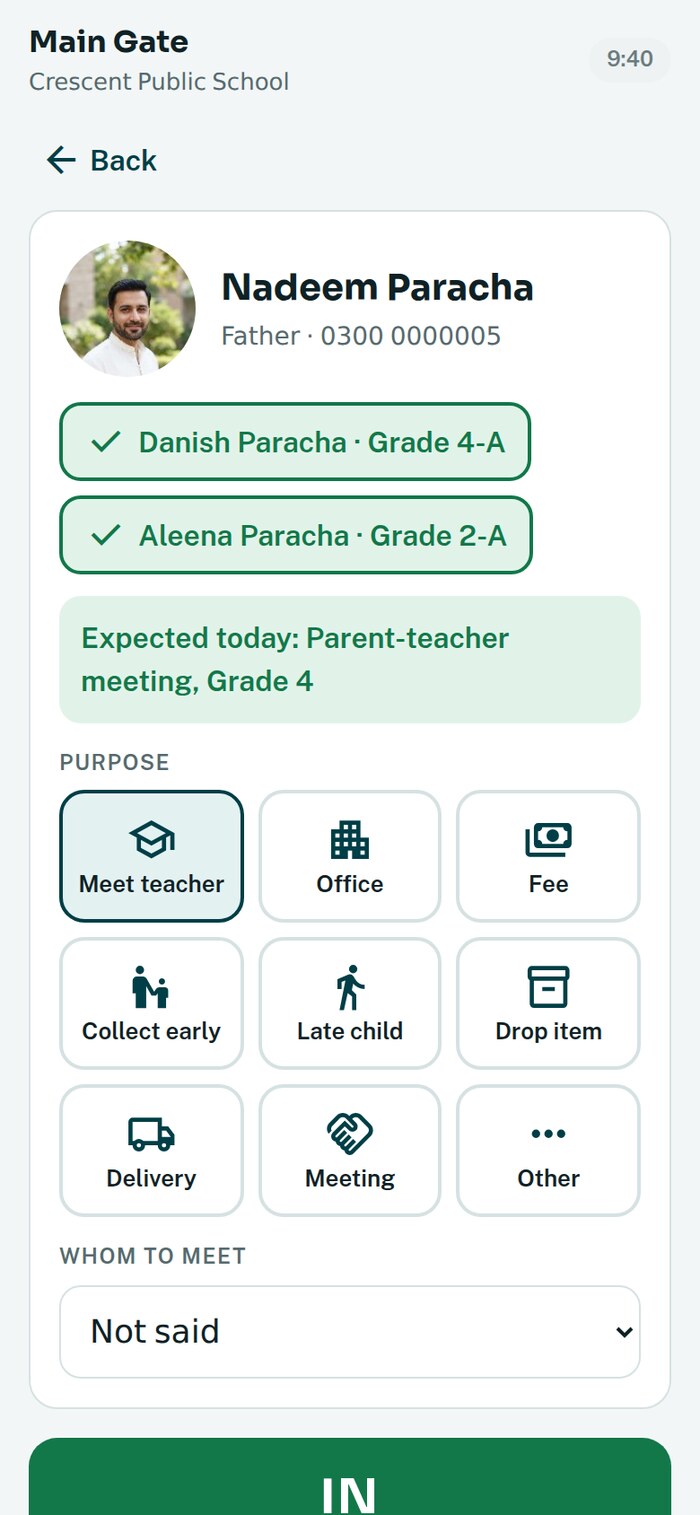
As simple as the paper register. Nothing to read, nothing to spell.
- phoneType the number
Or the last four digits, or part of a name. The guard only ever types digits.
- badgeSee who it is
A parent comes up with their photo on file and their children. Anyone else writes their own entry.
- checklistTap why
Meet a teacher, the office, a delivery, collect early. Big buttons, one tap.
- checkOK
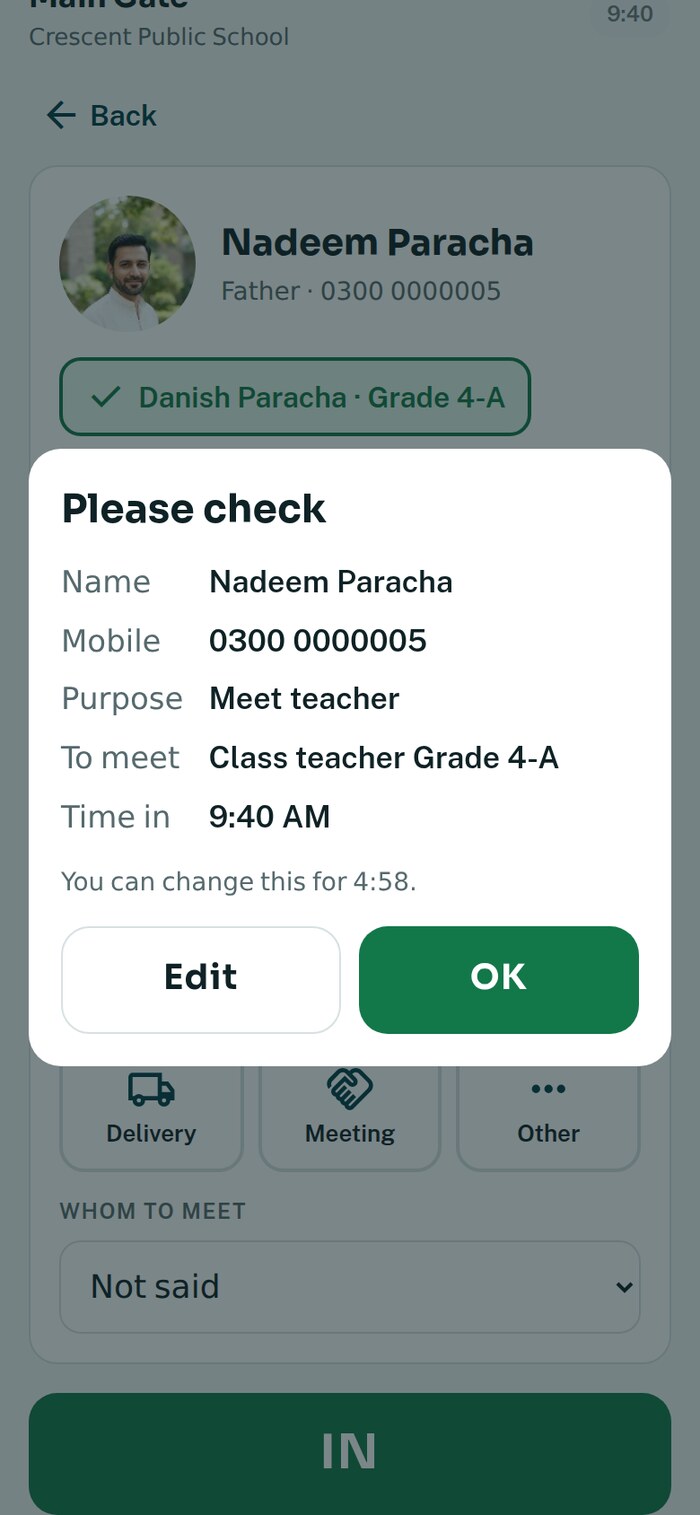
The entry is shown to check, can be changed for five minutes, then it is locked.
- directions_walkOut with the same number
Type the number again on the way out. Everyone inside is on one list.
Built for the person at the gate
One screen with a number pad and big buttons. Colour says what to do: green to let in, red to stop.
- checkType a mobile number, the last four digits, or part of a name
- checkRegulars — the water delivery, the electrician, the canteen supplier — come in with one tap
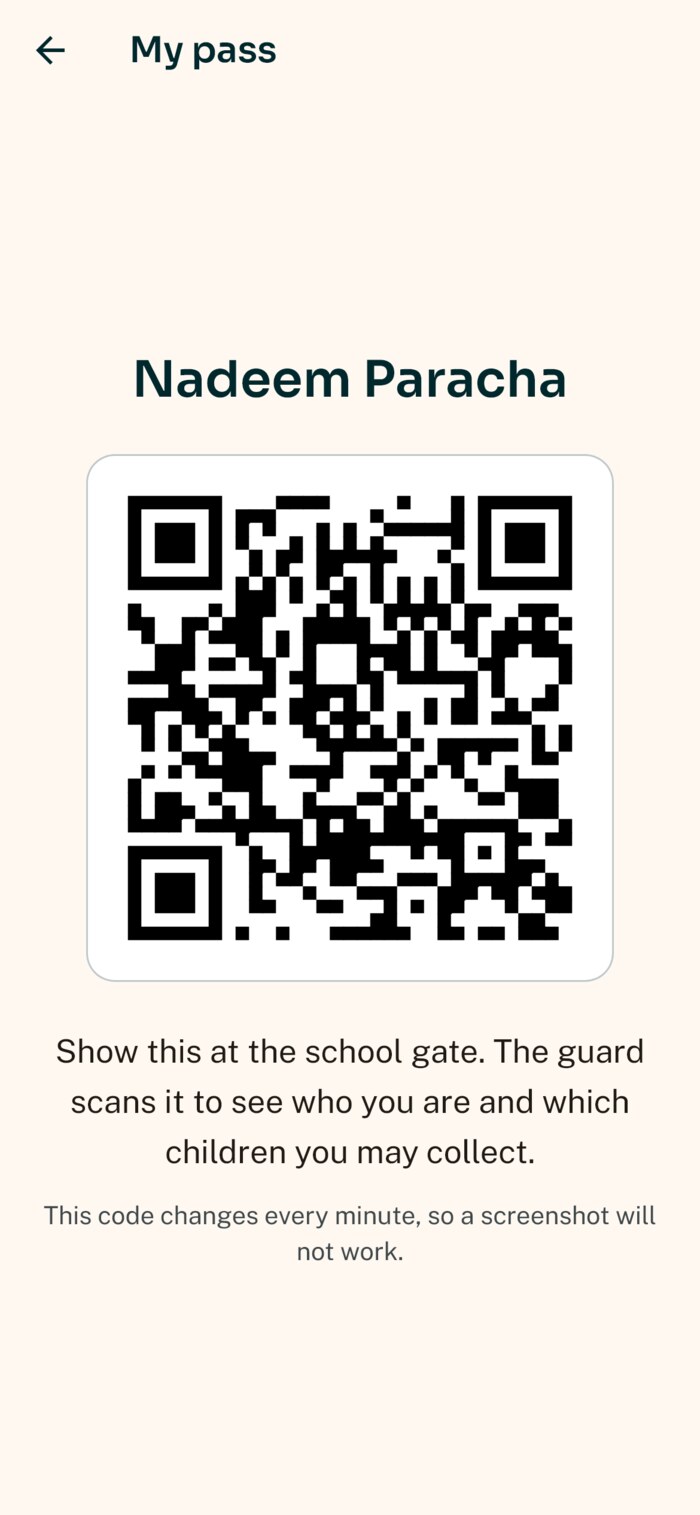
- checkParents with the app show My pass; scan it with the phone's camera or a plugged-in QR scanner
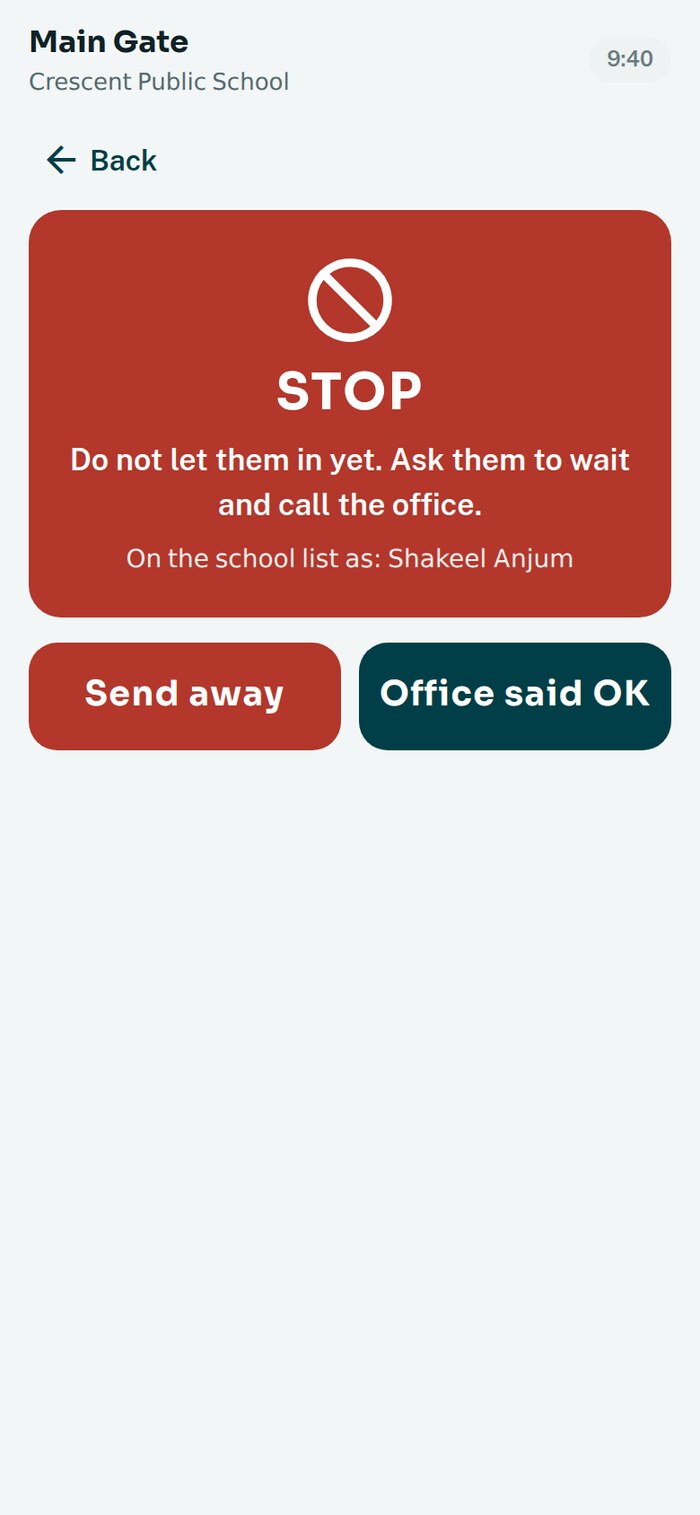
- checkSomeone on the school's alert list? The screen turns red and says stop, and the office is told at once
- checkWorks without signal: entries are kept on the phone and sent when the connection returns
- checkThe guard's phone, a school phone or a tablet — connected once with a link from the portal
Parents are recognised, and told
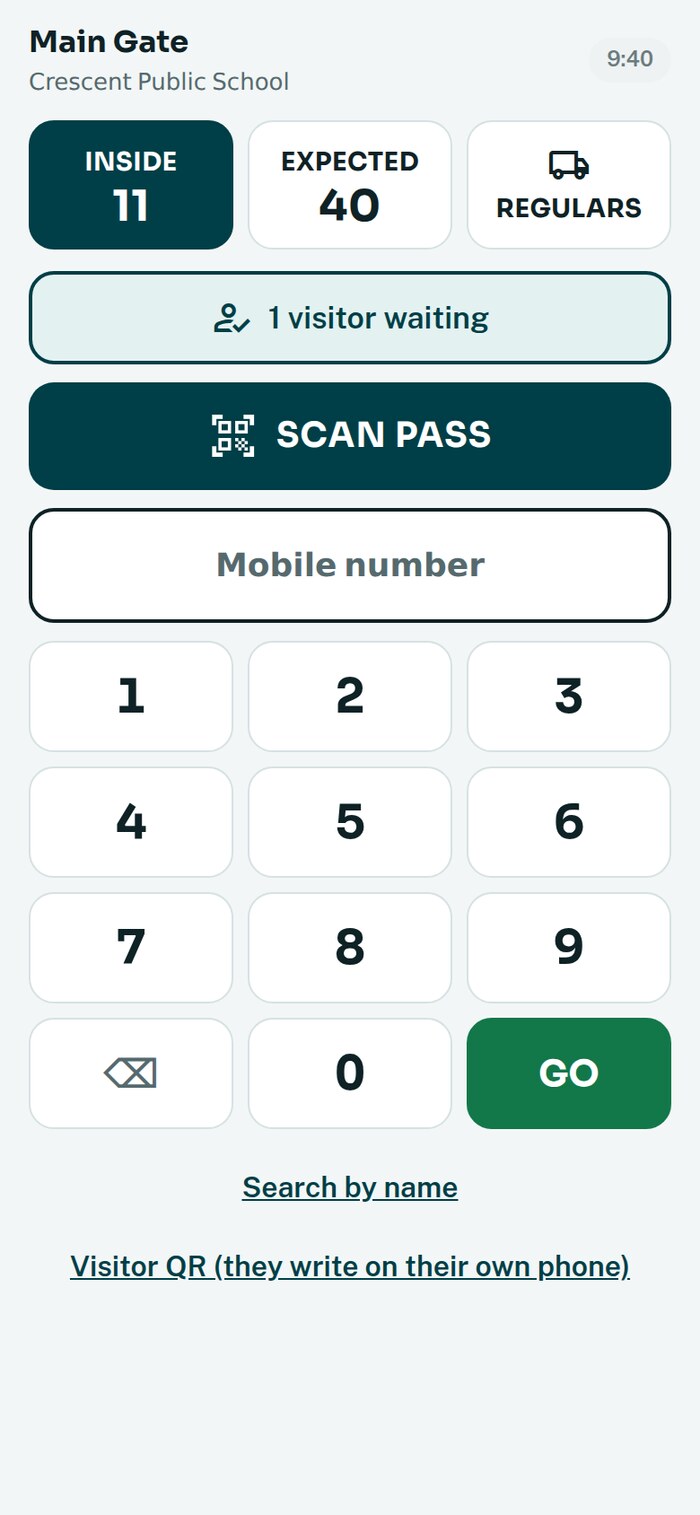
A parent is known by the number the school already has for them. No forms at the gate, and no queue for the ones the school knows.
- checkTheir name, their photo if the school has one, and their children at this school — the guard ticks which child they came for
- checkMy pass in the parent app: a code that changes every minute, so a forwarded screenshot does not work
- checkA message the moment they are signed in at the gate. If it was not them, they know at once
You were signed in at the school gate at 9:40 AM to meet class teacher Grade 4-A. If this was not you, please call the school.
Visitors write their own entry
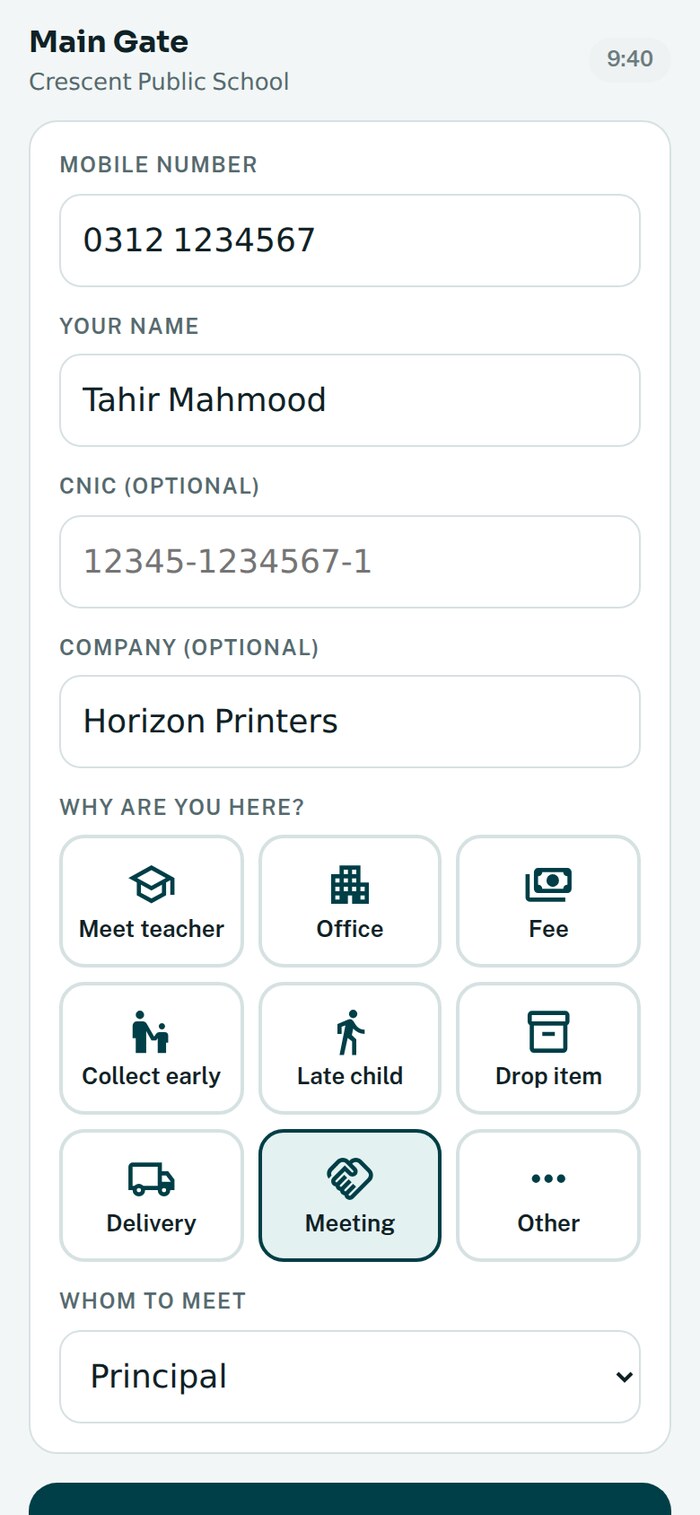
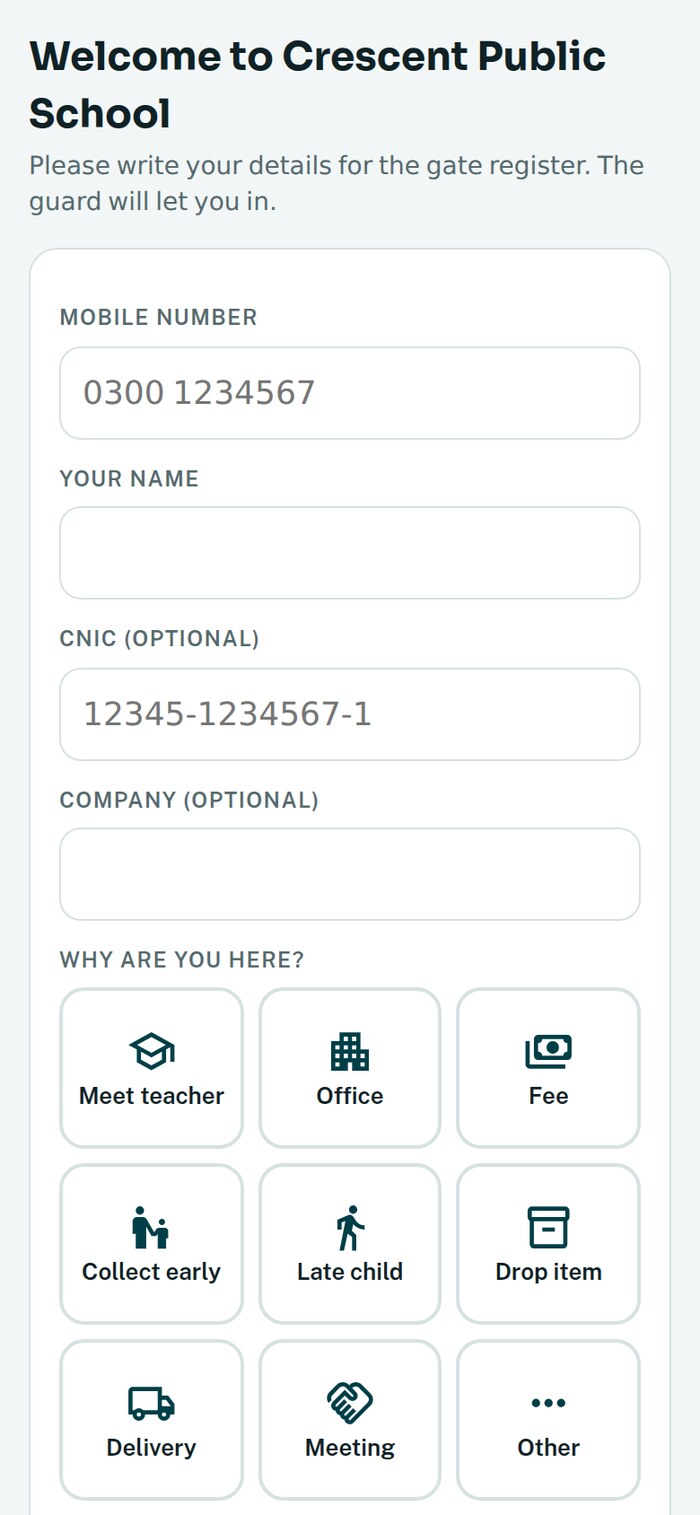
Someone new at the gate? The guard hands over the phone, like passing the register. Or the visitor scans a code and fills it in on their own phone while they wait.
- checkName and mobile number; company and CNIC if they have them — the CNIC is typed, never scanned
- checkWhy they are here and whom they are meeting, with a tap
- checkVisitors who wrote on their own phone wait on the guard's screen until they are let in
- checkSomeone who cannot write? One button saves the number and the time; the office completes it later
Invite in the app. Tick them off at the gate.
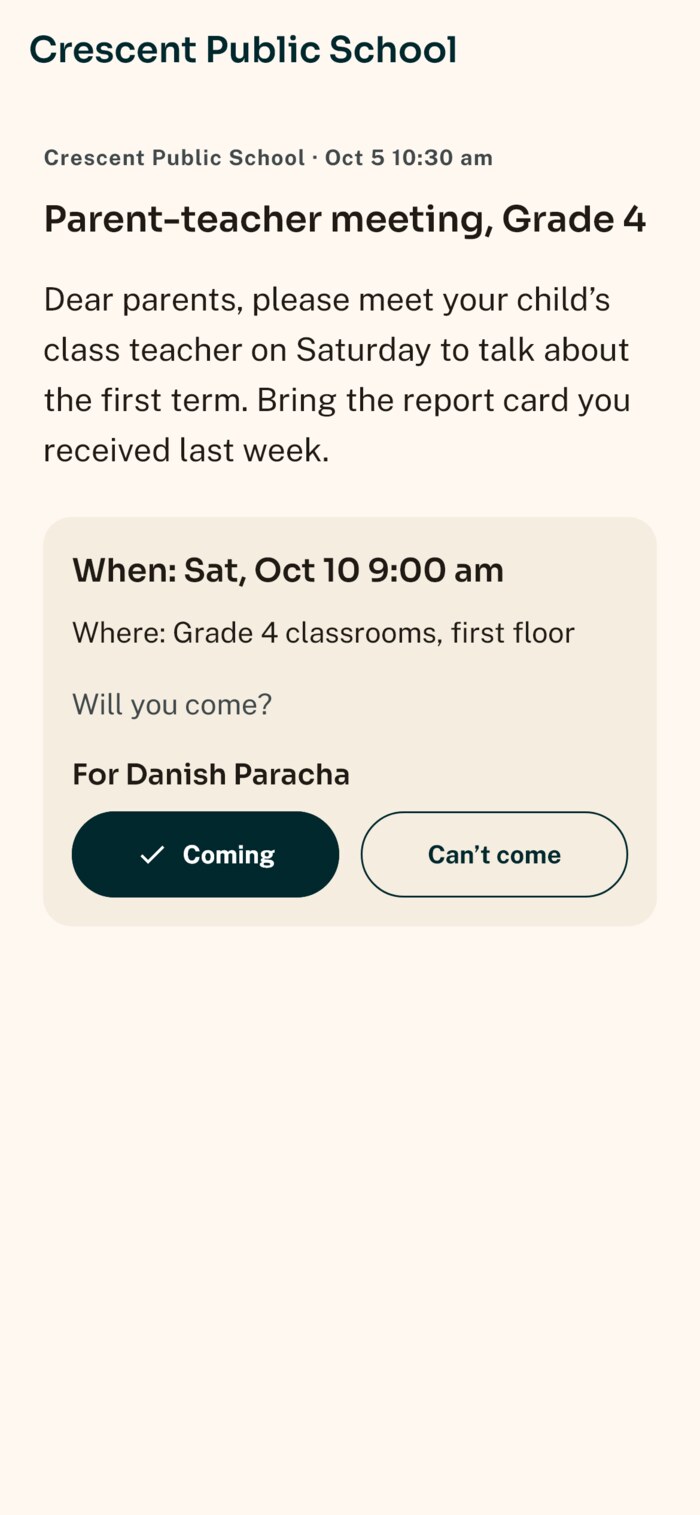
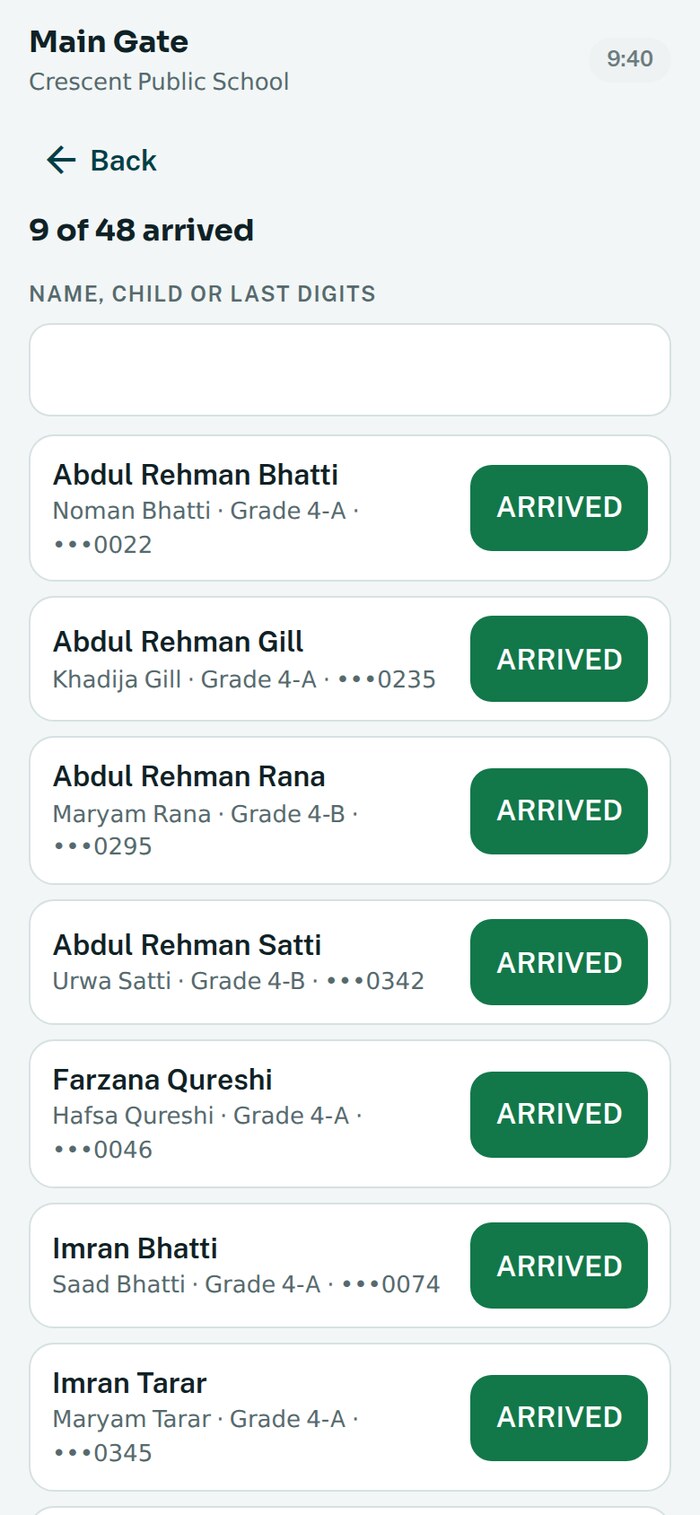
Send the invitation from the portal. Parents answer Coming or Can’t come for each child, and everyone coming is on the gate’s list for the day.
Lists from your classes
Pick the classes and every child's parent is on the list. Or paste a list, or add one person.
A reminder the evening before
Families who said they are coming are reminded the day before.
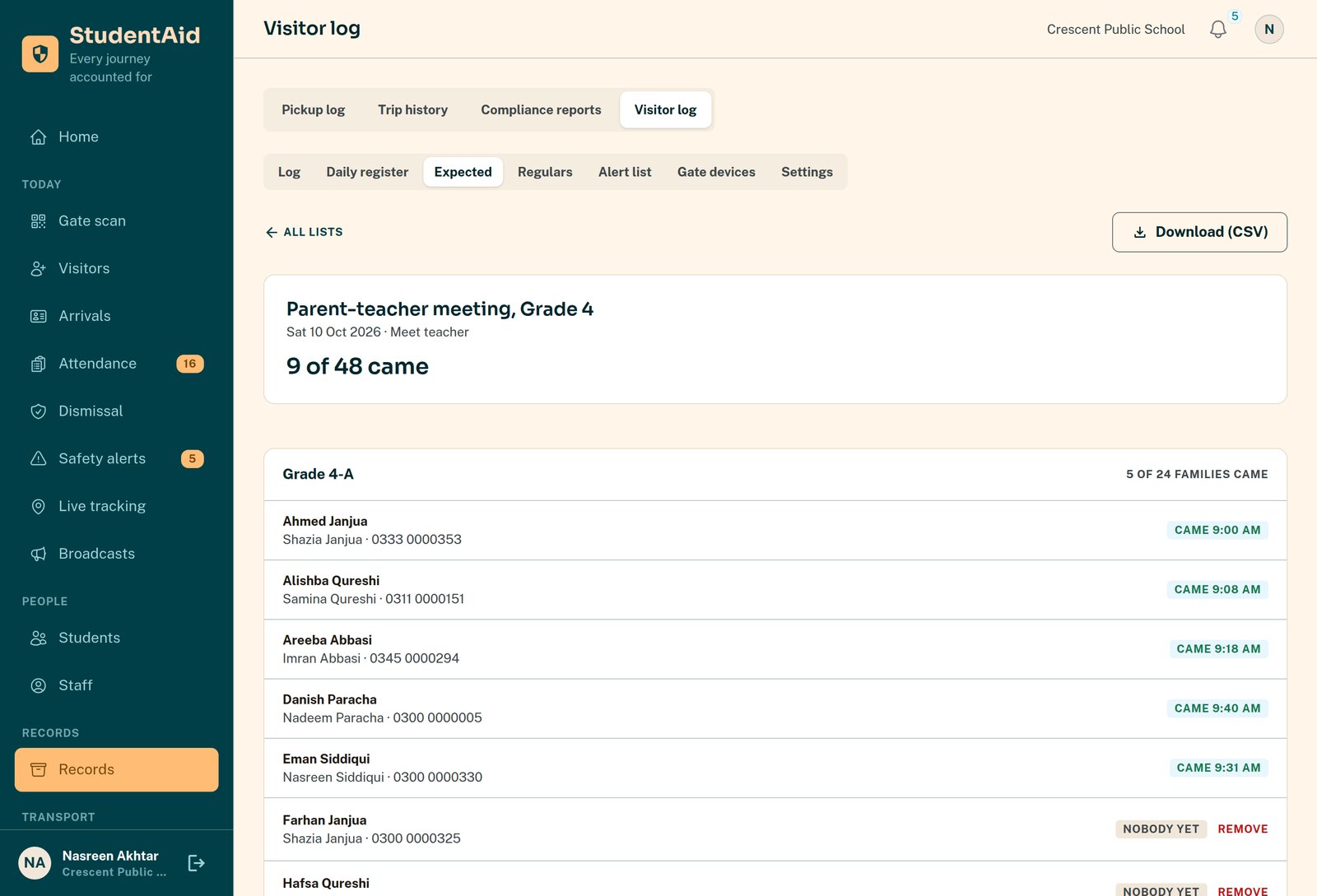
Who came, class by class
The office sees who came and who did not, and can download the list.
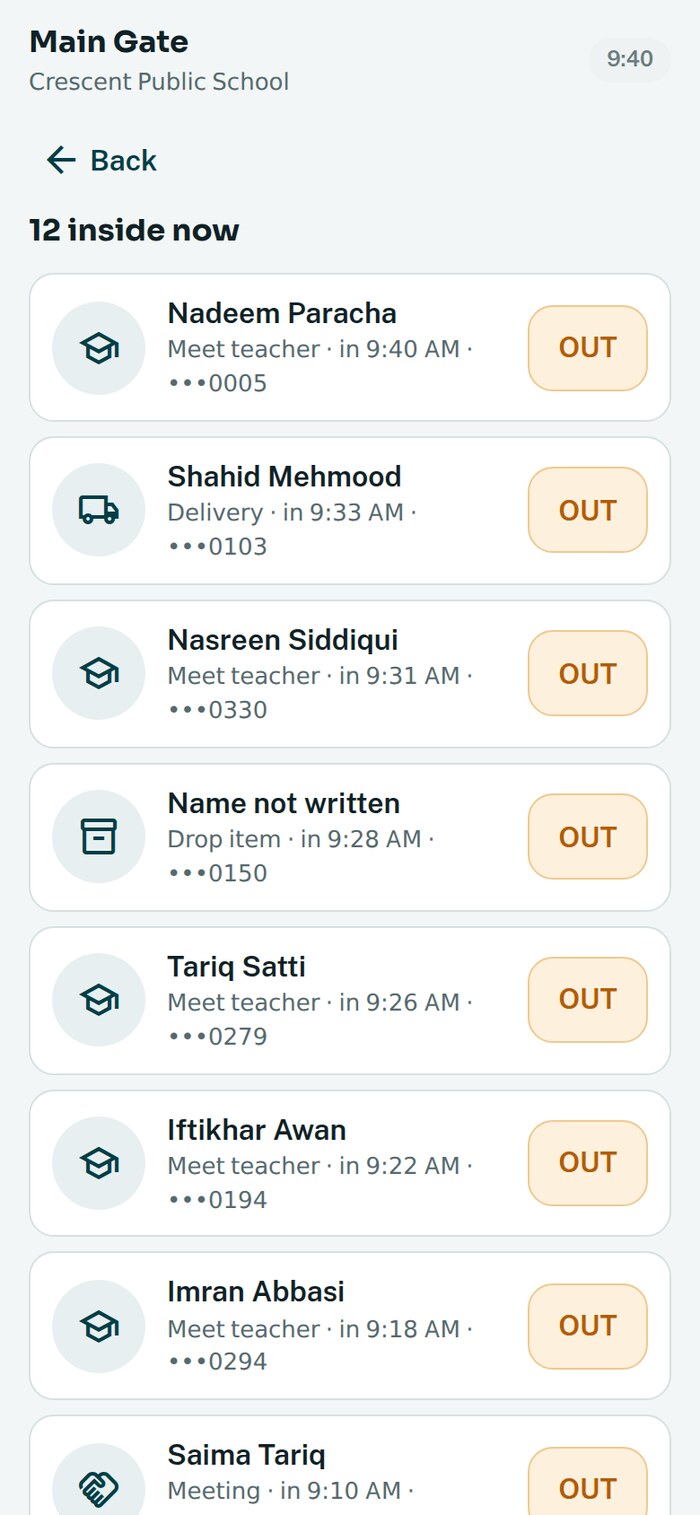
Who is inside, right now
Everyone who came in and has not gone out, on one list at the gate and in the office.
- checkInside now, with the time each person came in and why
- checkSomeone inside longer than your school allows is flagged
- checkAn evacuation roll-call of everyone inside, on every gate device, until it is ended
- checkAn alert list the office keeps: people not to let in, or the office to be told about
The whole day, without walking to the gate
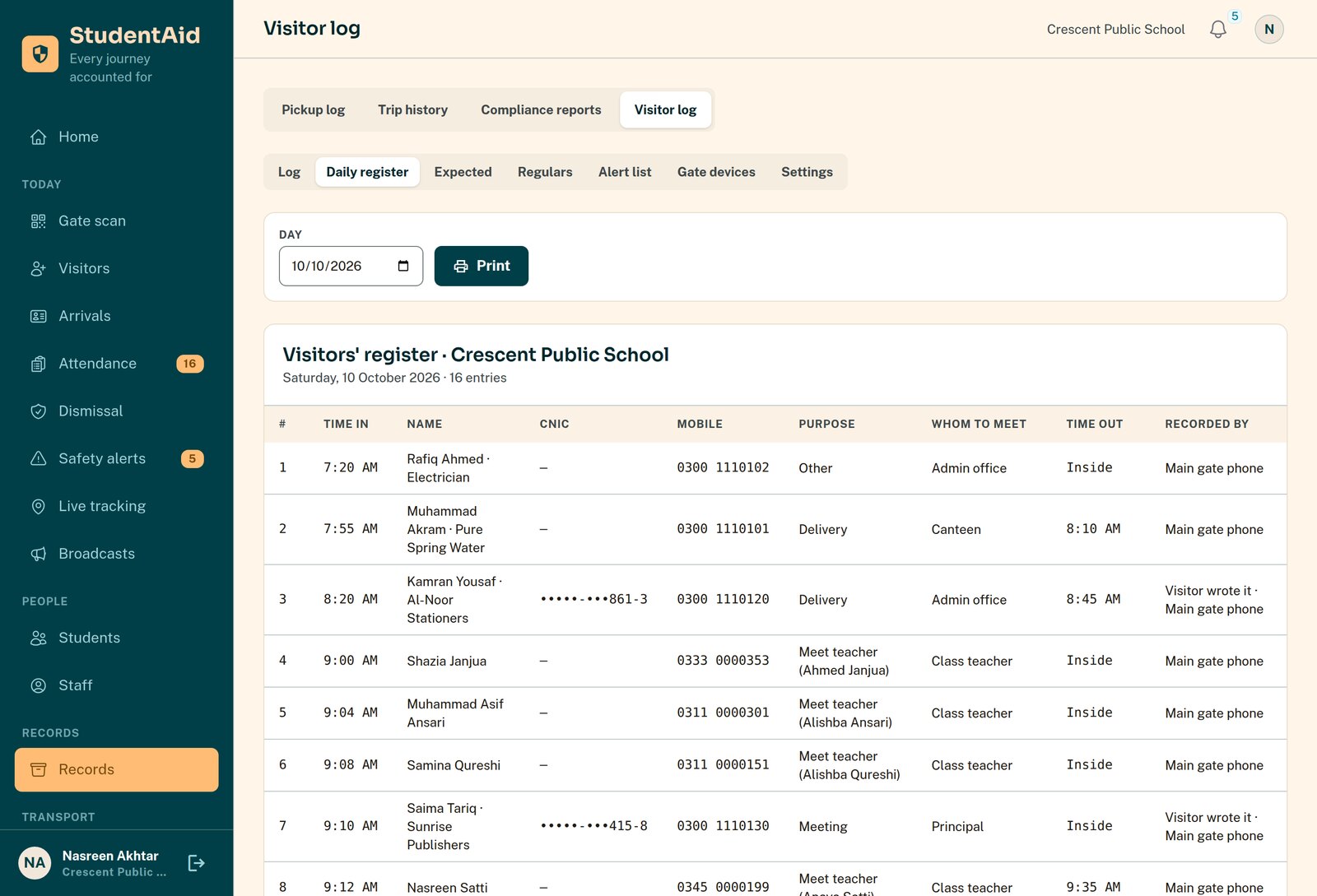
The visitor log, the daily register in the paper book's columns, and corrections that keep the original.
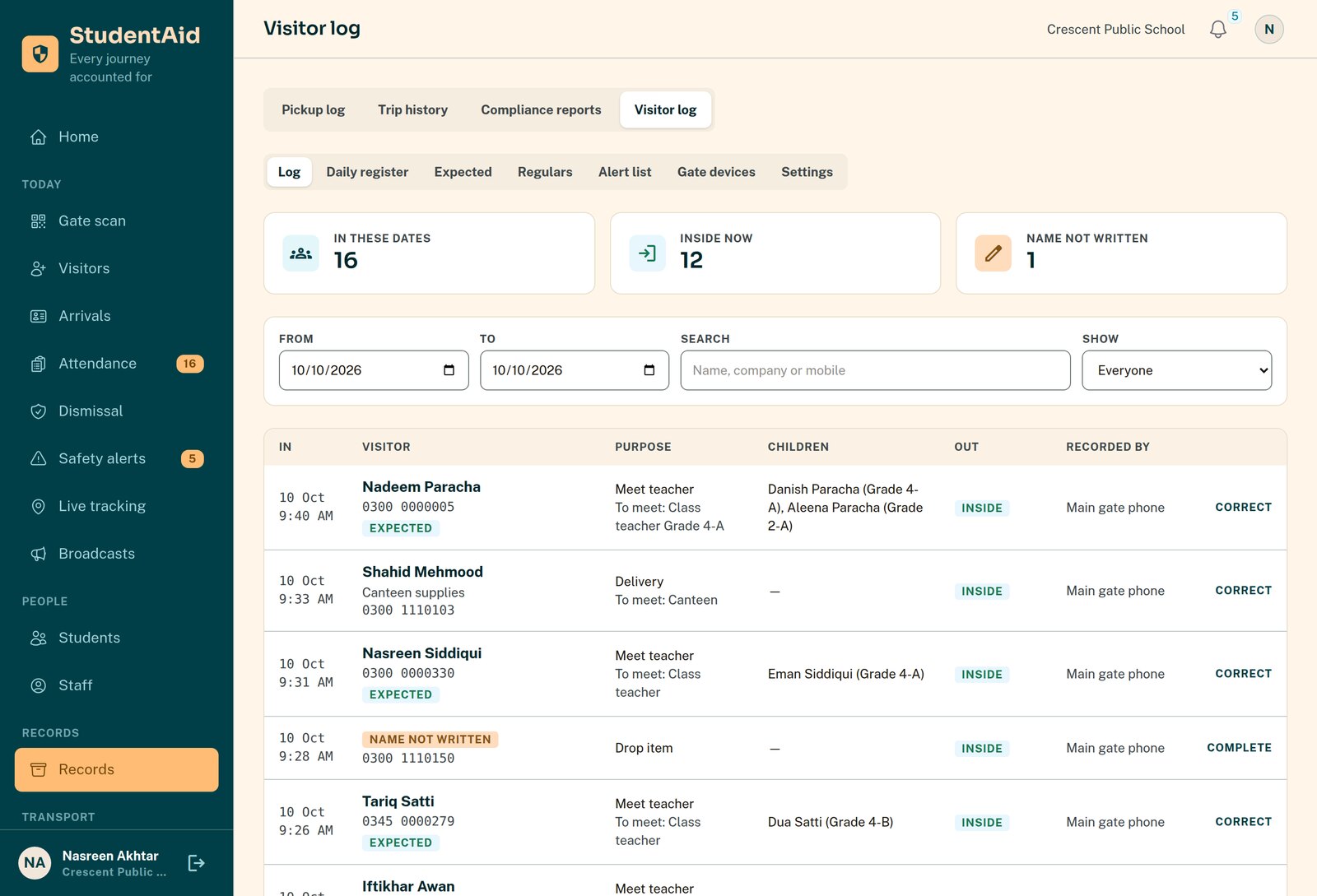
- checkEvery entry: who, why, whom they met, which children, in and out, and who wrote it
- checkThe daily register in the paper book's columns, ready to print or download
- checkA correction needs a reason, and the original is kept in the audit trail
Ready at the gate the same day
Everything is set from the school portal. Your parents are already there: the register uses the numbers the school has.
- Connect the gate phone
Open a one-time link on the guard's phone or a tablet. It opens straight on the gate screen from then on.
- Add your regulars
The people who come every day become one-tap tiles at the gate.
- Keep an alert list
People not to let in, or the office to be told about. Only the office sees why.
- Choose your rules
How long a visit may run before it is flagged, and whether every visitor must give a CNIC.
Visitor register questions
Does the guard need to read and write English?
No. The guard types numbers and taps big buttons with pictures. When someone new arrives, the guard hands the phone to the visitor, who writes their own details — just like passing them the paper register.
What device does the gate need?
The guard's own phone, a school phone or a tablet. You connect it once from the school portal with a one-time link; after that it opens straight on the gate screen. A lost phone is switched off from the portal in one click.
What if the internet drops at the gate?
The gate keeps working. Entries are kept on the phone and sent when the connection comes back, with the time they really happened.
Do we have to take everyone's CNIC?
No. A name and a mobile number are enough. The CNIC is optional and typed, never photographed or scanned. If your school wants it from every visitor, switch that on in the settings.
Is anyone turned away for not being on a list?
No. Expected lists only make the gate faster: the guard ticks people off with one tap. A parent who never answered the invitation is let in like anyone else.
How are parents recognised?
By the mobile number the school already has for them. The guard sees their name, their photo if the school has one, and their children at this school. Parents with the app can also show My pass, a code that changes every minute.
Can an entry be changed later?
For five minutes at the gate, then it is locked. After that only the office can correct it, with a reason, and the original is kept in the audit trail.
See it at your own gate
We connect your gate phone with you and your guard writes in the first visitor the same day.